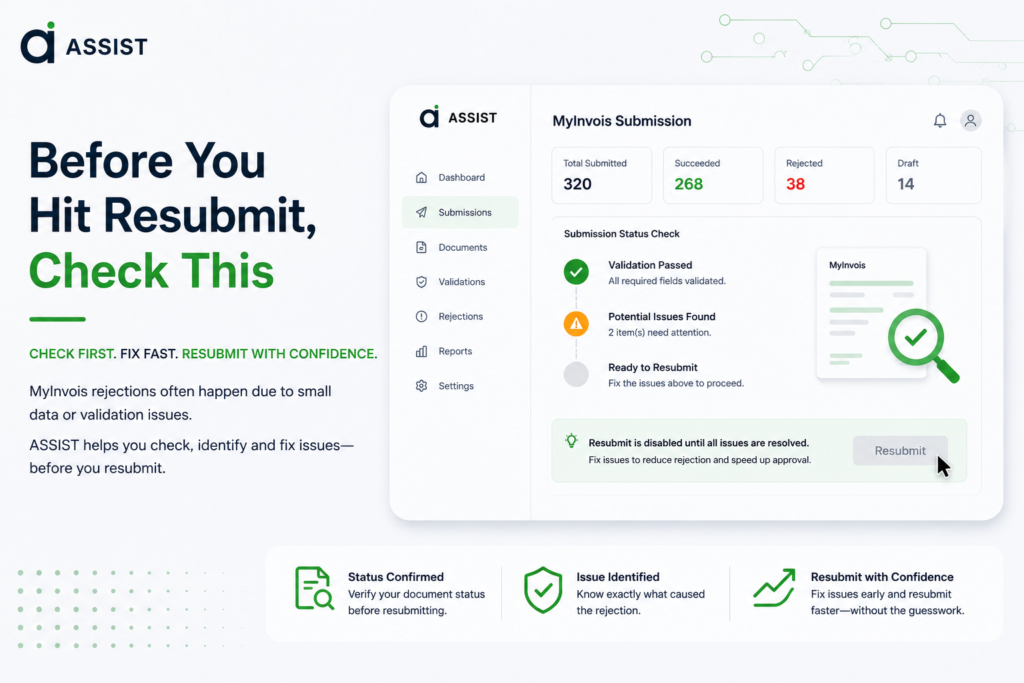






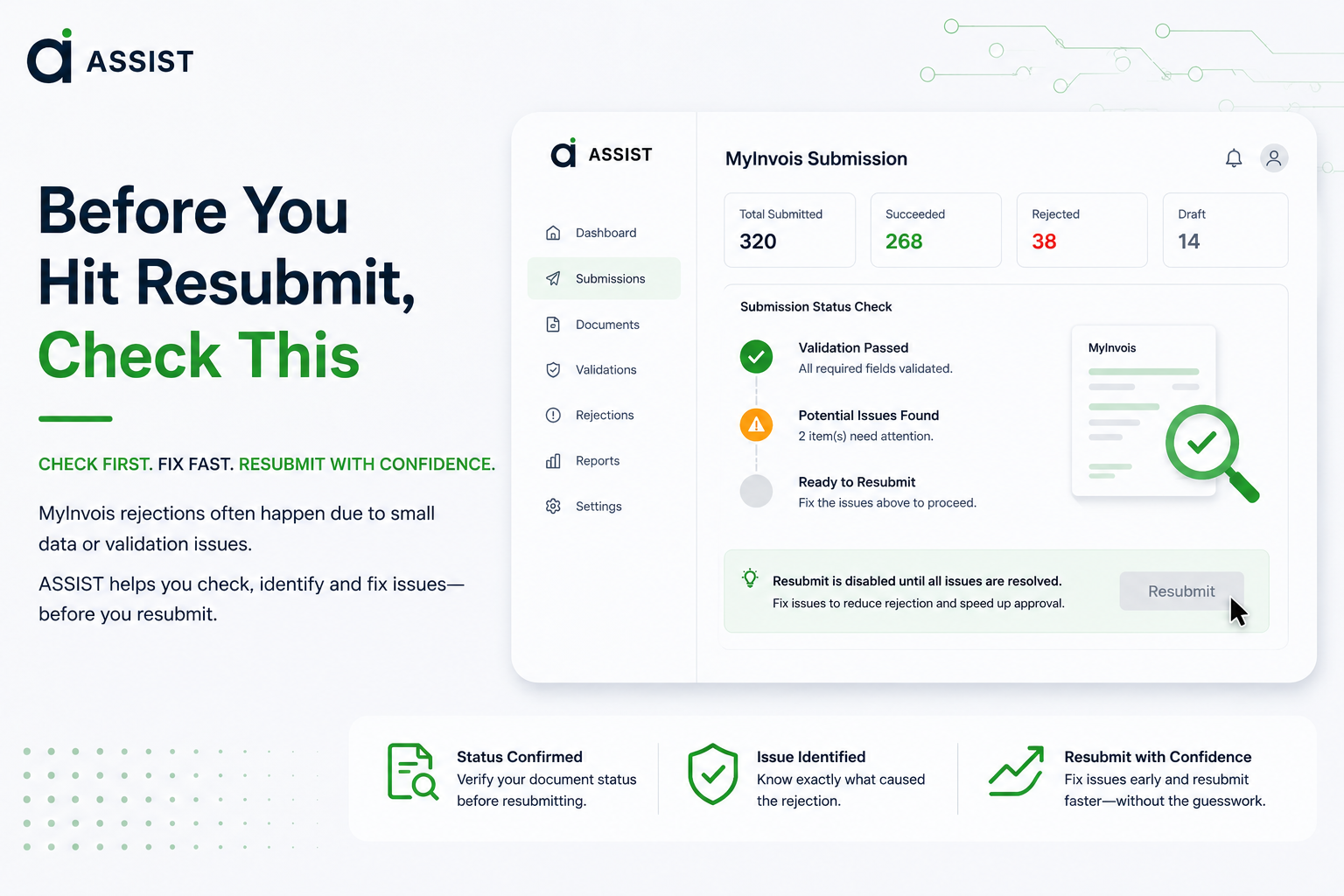

If MyInvois marks an e-Invoice Invalid, check the validation details before resubmitting it. Identify the failed field or rule, correct the underlying invoice or master data, confirm that the original document was not successfully processed, then resubmit the corrected e-Invoice and verify that its new MyInvois status is Valid.
A MyInvois invoice rejection is easier to resolve when you start with the document status rather than the error message alone. An Invalid document, a submission still being processed, a duplicate submission, and a buyer rejection require different responses.
If you need a refresher on the platform itself, ASSIST’s guide to what MyInvois is in Malaysia explains how it fits into Malaysia’s e-Invoicing system.
First, identify what happened to the MyInvois e-Invoice
MyInvois Invalid status is a document state indicating that an e-Invoice failed one or more applicable validation checks. An Invalid document normally needs correction before another submission attempt.
MyInvois Submitted status is a document state where the e-Invoice has entered the submission process, but its final validation outcome may not yet be available. Treating Submitted as Invalid too early creates a risk of unnecessary retries.
A MyInvois buyer rejection is a post-validation action involving an e-Invoice that has already become Valid. It is not the same as MyInvois marking a document Invalid during validation.
| What you see | What it means | Resubmit now? | Next action |
| Invalid | Validation failed | After correction | Read the error, correct the source data, then resubmit |
| Submitted | Final validation may still be pending | No | Check the current status |
| DuplicateSubmission | A matching submission may already exist | No | Find and verify the existing submission |
| Valid | Validation succeeded | No | Use the applicable post-validation correction process |
| Buyer rejection request | Buyer has raised an issue with a Valid invoice | No simple retry | Follow the applicable rejection or cancellation process |
The distinction matters because “something went wrong” does not automatically mean “send the invoice again.”
How to resolve a MyInvois invoice rejection and resubmit it
A reliable recovery process works from status to cause, then from cause to correction. The goal is not simply to make the error disappear. You need to know what failed and whether another submission is appropriate.
Step 1: Confirm the current MyInvois status
Check whether the document is actually Invalid.
If MyInvois or your connected accounting system still shows the e-Invoice as Submitted or processing, establish its latest status before retrying. A delay between submission and final validation is different from a confirmed validation failure.
This is where troubleshooting can get messy. Your accounting software may report a timeout or failed request even though MyInvois received the document. When the two systems appear to disagree, check the MyInvois submission or document record before doing anything else.
Step 2: Read the validation error before changing the invoice
Once the e-Invoice is confirmed as Invalid, open its validation details.
Look for the error code, affected field, property, or validation rule. Use that information to decide where to investigate.
A Tax Identification Number problem points toward taxpayer or party data. A classification error points toward classification data or mapping. An authentication failure may have nothing to do with the invoice contents.
Changing several fields at once makes the next failure harder to diagnose. Start with the issue identified by the validation result.
Step 3: Trace the failed value back to its source
The field named in the error message may be where the problem surfaced, not where it started.
Check whether the rejected value came from:
- supplier or customer master data
- a Tax Identification Number (TIN) or another identifier
- an invoice-level field
- tax or classification mappings
- a referenced document
- accounting-system field mappings
- an API payload, authentication setting, or permission
This distinction becomes important when one source record feeds many invoices. If a customer’s TIN is wrong in the master record, manually correcting today’s invoice may get that transaction through while leaving tomorrow’s invoice with exactly the same problem.
Step 4: Correct the source data, not only the rejected invoice
Fix the record responsible for the failed validation where possible, then review the e-Invoice again.
For incomplete or incorrect document information, compare the invoice with the mandatory e-Invoice fields used in Malaysia. Focus first on whatever field or rule MyInvois identified rather than reviewing unrelated information.
Consider a simple example. A customer’s TIN is stored incorrectly in the customer master record, causing an invoice to become Invalid. Editing the rejected invoice solves one transaction. Correcting the master record prevents the same bad TIN from flowing into later invoices.
That second correction addresses the actual process problem.
Step 5: Check whether MyInvois already has the document
Do this before resubmitting.
A failed response from an ERP, accounting application, or API does not prove that MyInvois never received the invoice. The request may have reached MyInvois even though the originating application failed to receive or record the response correctly.
Check the submission history and available document identifiers. If DuplicateSubmission appears, investigate the earlier submission instead of sending another copy.
This step is easy to skip because another submission feels faster than tracing the first one. It can also turn an uncertain submission into a duplicate problem.
If you need to investigate a specific error rather than the overall recovery process, ASSIST’s reference on common MyInvois submission errors and how to fix them covers individual error types in more detail.
Step 6: Resubmit only when the document state calls for it
Once you have confirmed that the document is Invalid, corrected the underlying problem, and ruled out an existing successful submission, submit the corrected e-Invoice again.
Use this decision rule:
- Invalid and corrected: resubmit.
- Submitted or unresolved: check the latest status first.
- Duplicate detected: locate and verify the existing submission.
- Valid: use the applicable post-validation correction process.
- Buyer rejection: follow the applicable rejection and cancellation process.
The exact buttons depend on whether you use the MyInvois Portal, an ERP, accounting software, or a direct API connection. The decision behind those buttons stays the same.
Step 7: Confirm that the corrected invoice becomes Valid
A successful transmission is not the finish line.
Check the corrected document’s validation status and confirm that it becomes Valid. Where your system exposes them, retain the document UUID, submission UID or reference, invoice number, and validation result.
Those records become useful when finance and technical teams need to investigate the same incident. If the e-Invoice becomes Invalid again, compare the new validation details with the first error. A different error can mean that the original correction worked but another validation rule has now failed.
Which MyInvois invoice rejection errors should you investigate first?
You do not need to memorise every MyInvois error code. Start with the category indicated by the validation result.
| Error category | Check first | Typical correction |
| TIN or identifier | Supplier/customer master data | Verify and correct the identifier |
| Missing field | Invoice or master data | Complete the required information |
| Tax or classification | Code mapping | Check the applicable code and tax data |
| Duplicate | Submission history | Locate the existing document |
| Structure or payload | Integration layer | Check XML/JSON structure and field mapping |
| Authentication or permission | API configuration | Check credentials, taxpayer identity, and permissions |
Keeping this diagnostic layer compact is deliberate. The immediate task is to establish the recovery path, not work through an encyclopaedia of possible MyInvois errors.
When should you not resubmit a MyInvois invoice?
Do not resubmit while the outcome of the first submission is uncertain. Three situations deserve particular caution.
The document is still Submitted
Submitted does not mean Invalid. Check the latest processing and validation result before sending another copy.
If your accounting software appears stuck, confirm the MyInvois-side status rather than assuming the first request disappeared.
MyInvois reports a duplicate
A duplicate message calls for investigation, not repeated retries.
Find the earlier submission, check its identifiers and status, and establish what MyInvois already holds. Another submission without that check can make reconciliation harder.
The e-Invoice is already Valid
Once an e-Invoice is Valid, you are no longer dealing with an Invalid-document resubmission.
An error found after validation may require an applicable cancellation or adjustment process. A buyer rejection also belongs to a post-validation workflow rather than the Invalid-document recovery process.
These actions can affect Malaysian tax records. Check the latest official HASiL/MyInvois requirements or consult a qualified Malaysian tax professional before changing an already Valid e-Invoice. ASSIST’s Malaysia e-Invoicing compliance guide provides additional background on the wider compliance process.
MyInvois validation rejection vs buyer rejection
The word “rejection” can describe two different events. Mixing them up sends the user down the wrong recovery path.
| Validation rejection | Buyer rejection | |
| Document state | Invalid | Already Valid |
| Trigger | MyInvois validation | Buyer action |
| Main issue | Data or validation-rule failure | Buyer identifies an issue with the invoice |
| First action | Read the validation result | Review the buyer’s rejection request |
| Resubmit? | Usually after correction | Not as a simple Invalid-document retry |
| Recovery path | Correct and validate again | Follow the applicable cancellation or adjustment process |
If the e-Invoice is already Valid, stop following the Invalid-invoice procedure. The problem has moved into a different stage of the document lifecycle.
MyInvois Portal and API failures can require different fixes
A failed Portal submission and a failed API submission may look similar to the finance team. Their causes can be very different.
| Portal or data-side problem | API or integration-side problem |
| Incorrect TIN | Authenticated taxpayer mismatch |
| Missing invoice field | Payload structure problem |
| Incorrect classification | Token or authentication problem |
| Tax or currency information | Permission or intermediary issue |
| Duplicate invoice data | Retry or request-handling problem |
An API introduces another layer between the accounting record and MyInvois. The invoice can look correct inside the ERP while a mapping, payload format, authentication setting, or request process causes the actual submission to fail.
For teams connecting finance systems rather than entering invoices directly, ASSIST’s guide to e-Invoicing integration for Malaysian SMEs covers the broader integration considerations. In practice, someone needs to know which system owns each field and what happens to that value before it reaches MyInvois.
How to prevent repeat MyInvois invoice rejections
One rejected invoice is a transaction problem. The same rejection every week is a process problem.
Finance and technical teams can reduce repeat failures by tightening a few controls:
- Validate TINs and party information before issuing invoices.
- Keep customer and supplier master records current.
- Check required fields before submission.
- Maintain controlled tax and classification mappings.
- Prevent users and integrations from making uncontrolled retries.
- Retain document and submission identifiers for tracing.
- Monitor authentication and permission failures in API connections.
- Review current MyInvois technical requirements when system rules change.
A useful internal measure is not only how quickly the team fixes an Invalid invoice. Track whether the same root cause appears again. A recurring TIN, mapping, or authentication error usually tells you where the upstream control needs attention.
Fix the rejection, then fix the process behind it
A recurring rejection tells you more than a one-off error. Once the immediate e-Invoice reaches Valid status, trace the failure back to the master record, mapping, validation check, or integration behaviour that caused it. Fixing that source is what prevents the next invoice batch from repeating the problem.
For Malaysian businesses dealing with recurring MyInvois invoice rejection across accounting data, invoice processing, and connected systems, ASSIST can help assess how those workflows fit together.
If repeated failures are exposing gaps in your e-Invoicing or automation setup, talk to an ASSIST specialist about your e-Invoicing and automation readiness.